
How it works
Pick a city. Read the sky.
- 01
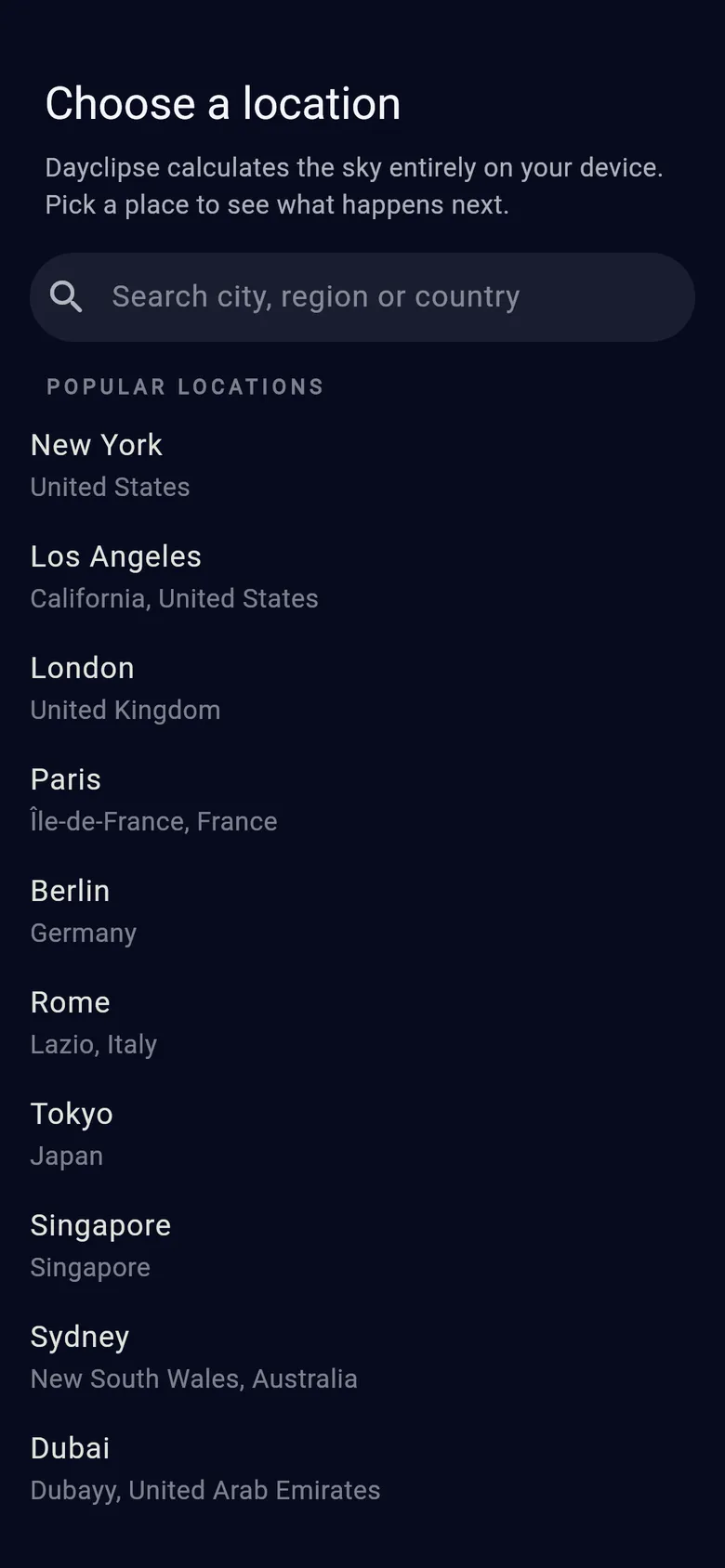
Choose a place
On first launch, search for a city, region or country — or tap a popular location. The list is built in, so it works offline. You can change places or star favorites at any time.
- 02
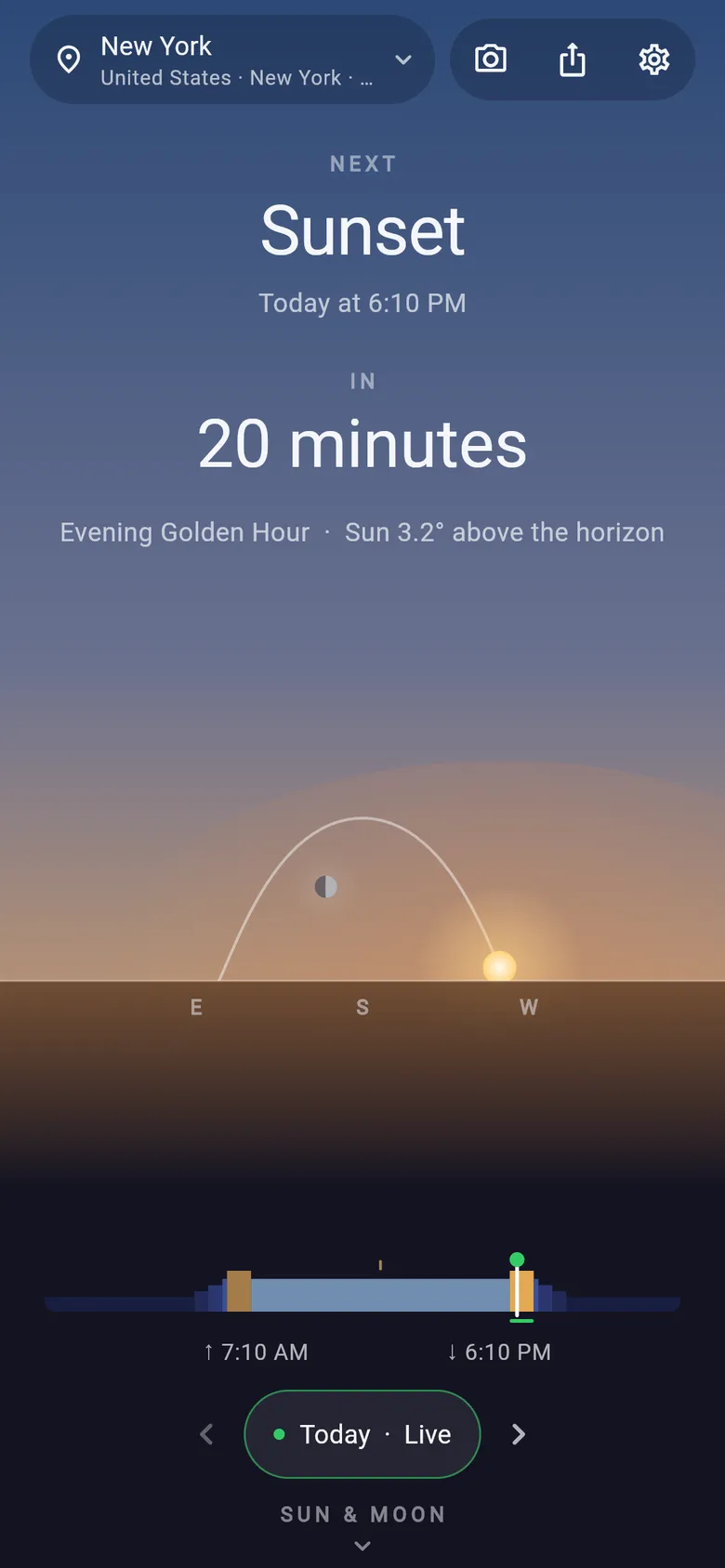
Read the live sky
The home screen shows the next event with a countdown, the current period of light and a sky scene with the Sun and Moon. Drag the timeline to preview other times, or step to another date.
- 03
Go deeper when you need to
Scroll down for the Sun, Moon and Events tabs. From the top bar, open the photography planner, share a sky card, or adjust settings.
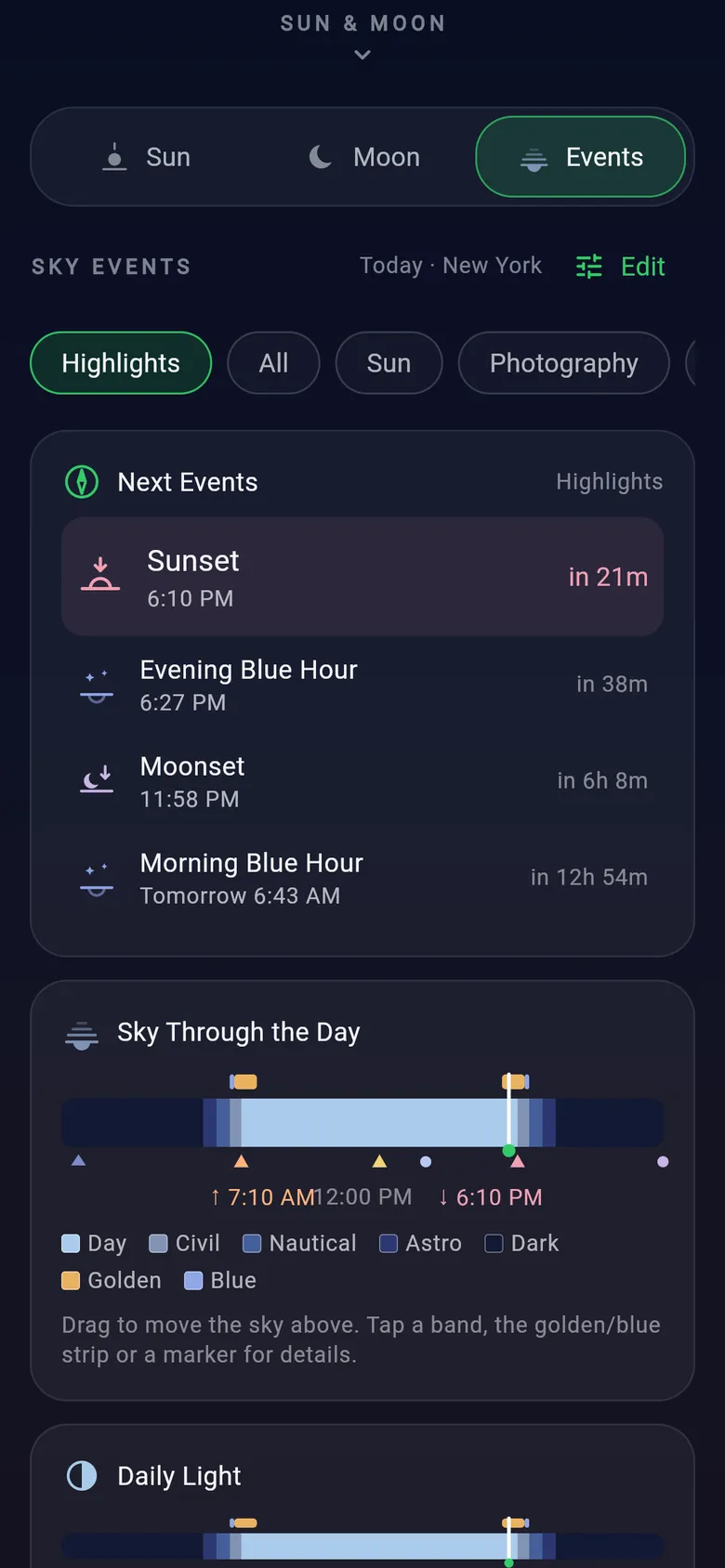
The three detail tabs
Below the live sky, three tabs share the same moment and place as the dashboard. Drag the timeline and every card follows. You can choose which tab opens first in Settings.
Sun
Sunrise and sunset, morning and evening golden hour and blue hour, the Sun's live position with a compass-aware dial, solar noon with maximum altitude, and total daylight.
Moon
Phase and illumination, moonrise and moonset, live position, the Moon's altitude through the day, upcoming principal phases, an observing guide, Moon age, Earth–Moon distance and a monthly lunar calendar.
Events
Next events, a layered Sky Through the Day timeline, daily totals for daylight, night and darkness, and the full agenda for the date. Filter by category, and choose which events and cards to show.
Tools in the top bar
- Location
- Tap the place name to search cities, switch places or manage favorites.
- Photography planner
- A true-north direction dial for the Sun and Moon, a time slider and golden and blue hour windows.
- Share
- Create a portrait or square image card and send it with your phone's share sheet.
- Settings
- Time format, angle notation, sky markers, starting tab, countdown, timeline labels and schedule.
AR Sky View opens from the Sun Position and Moon Position cards in the Sun and Moon tabs.
Permissions and sensors
Location
Not requested. You pick a city; Dayclipse never reads your GPS position.
Internet
Not needed for calculations. Used when available for Firebase analytics and crash reports.
Compass & motion sensors
Used to turn the Sun and Moon dials and for AR Sky View. Without a compass, dials stay north-up.
Camera
Requested only when you open AR Sky View. You can decline and use the sensor-only view.
Compass accuracy varies between phones and near metal or electronics; Dayclipse shows a warning and calibration tips when readings look unreliable.

Carry the whole sky in your pocket.
Sunrise to moonset, golden hour to astronomical darkness — for cities worldwide, calculated on your phone.